

Match Existing Records
Last updated
Efficient sales ops will ensure that leads go to the most relevant person. Sometimes leads will come in from a company that we already have an Account or Lead for. In these circumstances round robin isn't the best approach, instead, the best agent to deal with it is probably the person currently dealing with that company. Also known as Lead to Account Matching, this feature assigns such Leads and Accounts to the owner of matching Lead, Account or Contact records.
How To Set It Up
There are two things we need to do.
- Tick the checkbox Check Existing Records on the Match Group.
- Set up the native Duplicate Rule and Matching Rules
1. Enable Check Existing Records
Checking existing records during the assigning process is a setting on the Match Group.
- In Plauti Assign, go to Assign Setup > Match Groups.
- Open the Match Group where you want to check existing records when assigning.
- On the Match Group, go to tab Settings.
- In the 'Routing Settings' section, enable Check Existing Records.
- Click Save and repeat for other Match Groups if applicable.
2. Set up Duplicate Rule and Matching Rules
The Duplicate Rules and Matching Rules are native Salesforce functionality that Plauti Assign leverages to do the existing record check. You need to create the Duplicate Rule and the corresponding Matching Rules.
The Duplicate Rule shown below is configured in a way to be silent in the background. It will not pop up an alert to your users that they have duplicate records, and it won't affect Lead or Account creation.
To create the required Duplicate Rule (for Leads in this example) :
- Go to Salesforce Setup > ... > Duplicate Rules.
- Click New Rule.
- Select the object of the records you want to assign, in this case Lead.
- At Rule Name, name the rule, for example
SRR_Check_Existing_Leads.
Make sure the name starts withSRR_. If you don't keep to this naming convention, Plauti Assign won't find it. - At Record-Level Security, tick
Bypass sharing rules. - At Action On Create, set to
Allow, 'Alert' unticked, 'Report' ticked. - At Action On Edit, set to
Allow, 'Alert' unticked, 'Report' ticked.
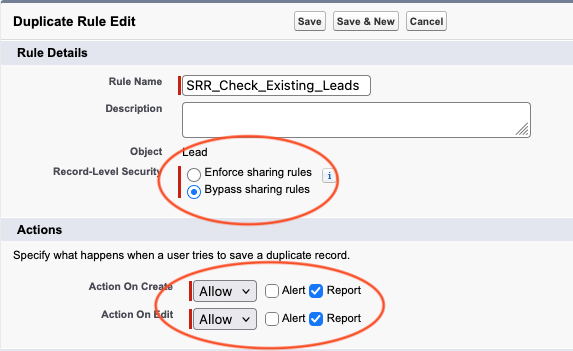
Then in the Matching Rules section, either select an existing Matching Rule, or create one for this purpose. Below the steps for creating a new rule are shown.
At Compare Leads With: select the object you want to match against. In this case we will select Leads because we want to spot duplicate (or near duplicate) Leads.

At Matching Rule, select
--Create New Matching Rule--. You will be prompted to save your duplicate rule.In the next screen, configure your Matching Rule. This is where you provide the parameters for how you would like to match your incoming Lead against the existing Leads. In the example below, we have selected the Company field, so if the incoming Lead's Company field exactly matches any existing Lead's Company field, it will be a match and the owner of the existing Lead will be assigned to the incoming Lead.
Click Save.
Return to your Duplicate Rule, and click Add Rule (optional) in the Matching Rules section to repeat the matching rule steps for Account and Contact, if you wish to match against those records as well.

When you have finished creating your Matching Rules, apply the following Condition:
Field:Lead: Use Plauti Assign
Operator:equals
Value:TRUE
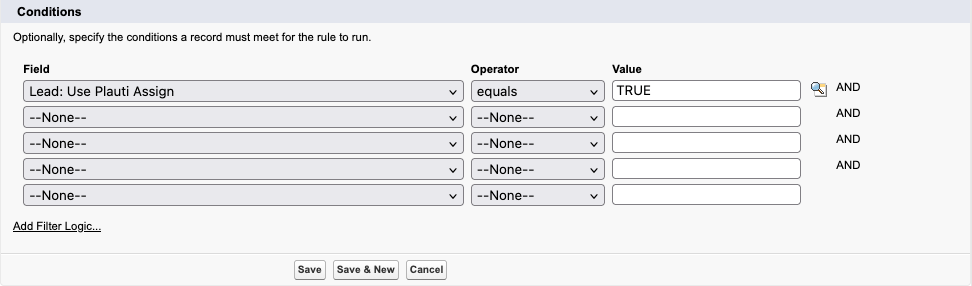
- Click Save.
- Then, for each object you want to match against (Lead, Contact, Account), open the match object in the Object Manager, and go to Compact Layouts.
- Check that the Owner and Name are at Selected Fields.
- In the object's Compact Layouts overview, edit the SRR Compact layout.
- Ensure that the Owner (e.g. Lead Owner) and Name are in the 'Selected Fields' column.
- Click Save.
- Set the SRR Compact layout to be the Primary layout.
- Back in the Compact Layers overview, click Compact Layout Assignment top right.
- If SRR Compact is not yet listed as the Primary Compact Layout, click Edit Assignment.
- At Primary Compact Layout, select
SRR Compact. - Click Save.
- Repeat steps 16 and 17 for other objects you want to match against.
Setup Finished. Summary of Setup Steps:
- 'Check Existing Records 'checkbox ticked on the Match Group
- 'SRR_RuleName' Duplicate Rule created
- Matching Rules applied to Duplicate Rule
- Compact Layouts for Account, Contact and Lead modified to include Owner and Name fields, and set as Primary layout
Once the above parts are set up, the system will be active. If an incoming record matches any existing record on the basis of the Matching Rules we've just set up, then the record will be assigned to the owner of that matching record. The duplicate matching system offers up several matches, and Plauti Assign chooses the one with the highest match score. The Assignee that was supposed to be next in line for a record will get the next incoming record.
Bulk Imports
As this is a CPU-intensive process, this functionality is disabled for any bulk imports of over 50 records. To use this functionality with larger bulk imports, use the 'batch size' function in an app such as Dataloader and set it to 50. This ensures that there are no more than 50 records per transaction.
Troubleshooting
Problem:
I got an email from Salesforce stating "We can't activate your Salesforce matching rule."
Answer:
Salesforce Duplicate rules are designed for spotting duplicates. We are leveraging the matching capabilities of the duplicate rules to do something slightly different; we want to spot 'almost duplicates' (e.g. a Lead comes from a Company that already exists as an Account).
The problem with 'almost duplicates' is that fields we want to match on, like Company, are sometimes not specific enough for Salesforce, and when you try to activate a duplicate matching rule Salesforce decides that it isn't a useful duplicate rule and doesn't activate it. This is entirely dependent on the makeup of your Leads, Contacts and Accounts. If you have a disproportionate number of records for the same Company, this may occur.
If this happens to you, go to Setup > Quick Find and search for 'duplicate'. Click on Matching Rules. You'll see something like this:

You'll see that in this case, the 'SRR_Lead' Matching Rule failed to activate. The 'SRR_Lead' Matching Rule only looks at the Company field. In this org, there are many Leads with the same Company, so too many duplicates would have been flagged.
Resolution:
- Add another field into the failing Matching Rule in order to fall below Salesforce's threshold for what a poor duplicate rule looks like. Zipcode, Country, State; any of these.
- Alternatively, the rule may have failed to activate due to a high number of test records that have the same Company name. Remove any test data and try to activate the rule.
- Still doesn't activate? If neither of the above is feasible, please contact Salesforce Support to discuss a possible increase to your Org's "Identical Match Key Threshold". Please let them know that "a Managed Package is using Duplicate Rules to identify similar records" and reasons why options 1 and 2 above are not viable solutions. Support can raise this limit from the 2% default to 5%.