

Flow Action - Direct Process
Last updated
The Flow Action feature is available in the Premium Edition.
The "Direct Process" flow action lets you add a record to be processed in Plauti Deduplicate's Direct Processing feature.
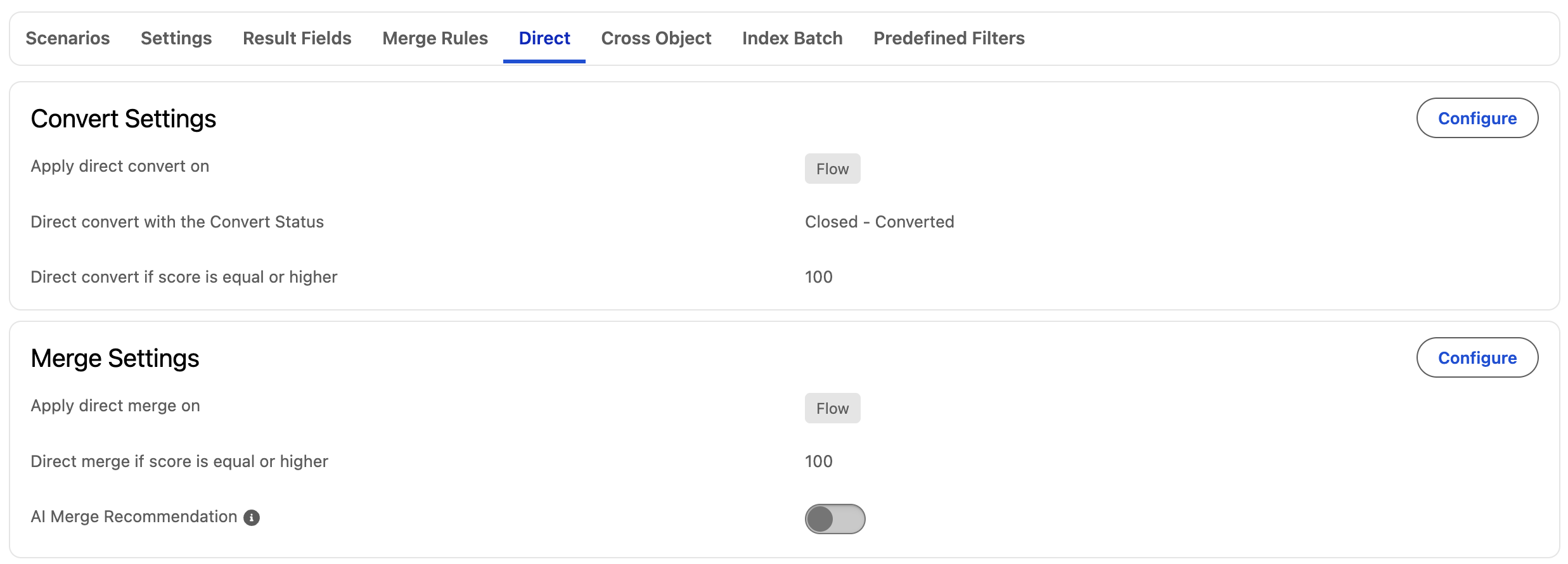
1. Configure Direct Processing to process records that are added via a flow
- In Plauti Deduplicate, go to Deduplicate Setup.
- Configure the Object you want to set up Direct Processing for.
- Open the object's Direct tab.
- Configure the Convert Settings or Merge Settings.
- At Apply direct convert/merge on, select
Flow. - For Convert, set a status to add to converted records.
- At Direct convert/merge if score is equal or higher, choose from which matching score the duplicates should be processed by the Direct Process feature. As merging and converting cannot be undone, it is recommended to set a high threshold score of 99% or 100%. This way only those records that are most certainly duplicates will be processed.
Learn more about Direct Processing.
2. Store a Record ID to serve as input
The "Direct Process" flow action needs a Record ID to serve as input for the action. For example, store an ID in a variable, or collect it from a screen flow.
3. Use the "Direct Process" flow action
- From the 'Elements' section, drag a new Action to the screen from the Toolbox on the left side.

- In the 'New Action' dialog, search for Process record via Direct Processing.
- At Label, define a name for your action. If the API name is not set automatically, make sure an API name is defined as well.
- At Set Input Values, make sure to insert a Record ID.
- Optional: At Async, decide if you want to process the duplicate synchronically or a-synchronically. By default, the record is processed synchronically.
If you want to process the records a-synchronically, make sure to switch the toggle to include the Async option. As a value, enter a Global Constant set to true.
- Click Done.
4. Connect your actions to the start trigger
Make sure your actions are connected to the start trigger.

In this example, we're first collecting a Record ID via a screen flow that serves as input for the Direct Processing flow action.
5. Run the flow
Run the flow by clicking Run.
Direct Processing action result
After running the flow, the action returns a parameter that can be used further in the flow. For example, show a notification to the user if the action succeeded or failed.
| Parameter | Description |
| Succeeded | A boolean that returns "True" or "False". |